# Panduan Umum Superadmin

# Masuk ke Akun ANDARA (Login)

<p class="callout info"><span style="color: #000000;">Untuk masuk ke ANDARA dengan level **"Superadmin"**, harap konfirmasi ke **tim TI/Polda** atau **tim Pendidikan Pusat Nurul Fikri**.</span></p>

<span style="color: rgb(0, 0, 0);"><span lang="IN">1. Pada halaman *Home,* klik **"*Login***<span lang="EN-US" style="font-size: 12.0pt; mso-bidi-font-size: 11.0pt; line-height: 150%; font-family: 'Times New Roman',serif; mso-fareast-font-family: 'Times New Roman'; mso-ansi-language: EN-US; mso-fareast-language: EN-US; mso-bidi-language: AR-SA;">**"**</span>. </span></span>

<span style="color: rgb(0, 0, 0);">![](https://images.bimbelnurulfikri.id/uploads/images/gallery/2025-02/embedded-image-9ennouhy.png)</span>

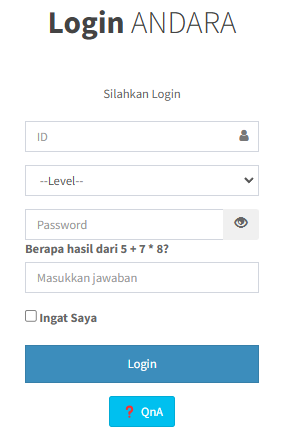
<span style="color: rgb(0, 0, 0);">2. Isilah **"form *Login*"** sesuai ketentuan di bawah dan kalau sudah klik **"*****Login"***.</span>

[![image.png](https://images.bimbelnurulfikri.id/uploads/images/gallery/2025-02/scaled-1680-/HfWimage.png)](https://images.bimbelnurulfikri.id/uploads/images/gallery/2025-02/HfWimage.png)

<table border="1" id="bkmrk-no-kolom-penjelasan-" style="border-collapse: collapse; width: 99.7619%; height: 186.594px; border-width: 1px; border-style: inset;"><colgroup><col style="width: 10.7046%;"></col><col style="width: 25.6098%;"></col><col style="width: 63.6856%;"></col></colgroup><thead><tr style="height: 29.7969px;"><td class="align-center" style="height: 29.7969px;"><span style="color: rgb(0, 0, 0);">**No**</span></td><td class="align-center" style="height: 29.7969px;"><span style="color: rgb(0, 0, 0);">**Kolom**</span></td><td class="align-center" style="height: 29.7969px;"><span style="color: rgb(0, 0, 0);">**Penjelasan**</span></td></tr></thead><tbody><tr style="height: 29.7969px;"><td style="height: 29.7969px;"><span style="color: rgb(0, 0, 0);">1</span></td><td style="height: 29.7969px;"><span style="color: rgb(0, 0, 0);">ID</span></td><td style="height: 29.7969px;"><span lang="EN-US" style="color: rgb(0, 0, 0);">ID pegawai yang terdaftar di SIKOCLOUD</span>

</td></tr><tr style="height: 32px;"><td style="height: 32px;"><span style="color: rgb(0, 0, 0);">2</span></td><td style="height: 32px;"><span style="color: rgb(0, 0, 0);">-- Level --</span></td><td style="height: 32px;"><span lang="EN-US" style="color: rgb(0, 0, 0);">Status anda di Nurul Fikri, pilih **“Pegawai”**</span>

</td></tr><tr style="height: 32px;"><td style="height: 32px;"><span style="color: rgb(0, 0, 0);">3</span></td><td style="height: 32px;"><span style="color: rgb(0, 0, 0);">Password</span></td><td style="height: 32px;"><span lang="EN-US" style="color: rgb(0, 0, 0);">Password yang sama seperti di SIKOCLOUD</span>

</td></tr><tr style="height: 32px;"><td style="height: 32px;"><span style="color: rgb(0, 0, 0);">4</span></td><td style="height: 32px;"><span style="color: rgb(0, 0, 0);">Pertanyaan Captcha</span></td><td style="height: 32px;"><span lang="EN-US" style="color: rgb(0, 0, 0);">Untuk memecahkan kode captcha, anda bisa menggunakan **kalkulator**</span>

</td></tr><tr style="height: 31px;"><td style="height: 31px;"><span style="color: rgb(0, 0, 0);">5</span></td><td style="height: 31px;"><span style="color: rgb(0, 0, 0);">Ingat Saya</span></td><td style="height: 31px;"><span lang="EN-US" style="color: rgb(0, 0, 0);">Centanglah agar **ID** dan **Password** tersimpan otomatis di browser Anda **(opsional)**</span>

</td></tr></tbody></table>

<span style="color: rgb(0, 0, 0);">3. Pada **"form *Login"***, Anda juga dapat melihat pertanyaan-pertanyaan yang sering ditanyakan pada **"QnA"** atau klik **"*****Login*****"** untuk masuk ke sistem ANDARA.</span>

<span style="color: rgb(0, 0, 0);"></span>

<p class="callout success"><span style="color: rgb(0, 0, 0);">Selamat, anda telah berhasil masuk ke sistem ANDARA!</span></p>

[![image.png](https://images.bimbelnurulfikri.id/uploads/images/gallery/2025-02/scaled-1680-/J92image.png)](https://images.bimbelnurulfikri.id/uploads/images/gallery/2025-02/J92image.png)

<p class="callout info"><span style="color: rgb(0, 0, 0);">Jika ingin mengakses ANDARA melalui akun pegawai (konsultan prodi/SMT/admin wilayah/admin regional), segara hubungi Tiara (Call Center TI/Polda).</span></p>

# Data Sekolah Kerjasama


# Menambahkan Data Sekolah Kerjasama

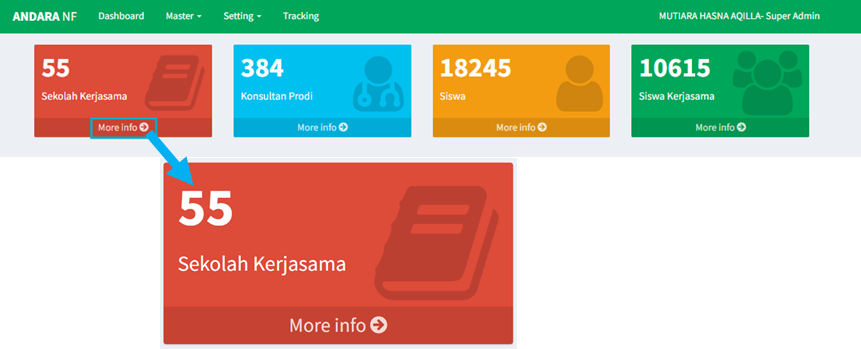
<p class="callout info"><span style="color: rgb(0, 0, 0);">*Card* ini berisi **jumlah kerjasama ANDARA** yang diajukan pada SIHUKER.</span></p>

<span style="color: rgb(0, 0, 0);">1. Masih di halaman *Dashboard*, klik **"More Info"** pada **"*card* Sekolah Kerjasama"**.</span>

<span style="color: rgb(0, 0, 0);">![](https://images.bimbelnurulfikri.id/uploads/images/gallery/2025-02/embedded-image-iouvq3gz.png)</span>

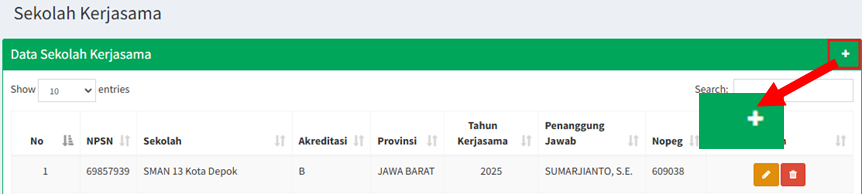
<span style="color: rgb(0, 0, 0);">2. Klik **(+)** untuk menambahkan data sekolah kerjasama. </span>
<span style="color: rgb(0, 0, 0);">![](https://images.bimbelnurulfikri.id/uploads/images/gallery/2025-02/embedded-image-81x9rwel.png)</span>

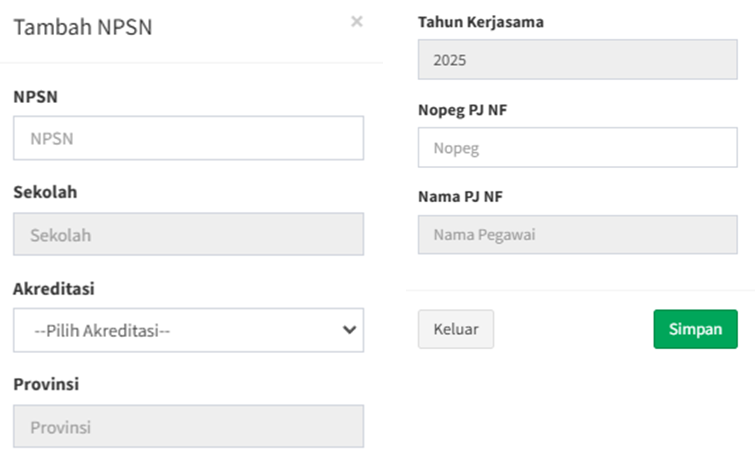
<span style="color: rgb(0, 0, 0);">3. Isilah semua data yang tertera pada **"popup Tambah NPSN"** sesuai ketentuan di bawah.</span>

![](https://images.bimbelnurulfikri.id/uploads/images/gallery/2025-02/embedded-image-9blr03id.png)

<table border="1" id="bkmrk-no-kolom-penjelasan-" style="border-collapse: collapse; width: 100.476%; height: 270.11px; border-width: 1px; border-style: inset;"><colgroup><col style="width: 10.7046%;"></col><col style="width: 25.6098%;"></col><col style="width: 63.6856%;"></col></colgroup><thead><tr style="height: 29.7969px;"><td class="align-center" style="height: 29.7969px;"><span style="color: rgb(0, 0, 0);">**No**</span></td><td class="align-center" style="height: 29.7969px;"><span style="color: rgb(0, 0, 0);">**Kolom**</span></td><td class="align-center" style="height: 29.7969px;"><span style="color: rgb(0, 0, 0);">**Penjelasan**</span></td></tr></thead><tbody><tr style="height: 52.1875px;"><td style="height: 52.1875px;"><span style="color: rgb(0, 0, 0);">1</span></td><td style="height: 52.1875px;"><span style="color: rgb(0, 0, 0);">NPSN</span></td><td style="height: 52.1875px;"><span style="color: rgb(0, 0, 0);">Anda bisa mencari semua NPSN Sekolah Kerjasama di</span>  
<span style="color: rgb(0, 0, 0);">[https://dapo.dikdasmen.go.id/](https://dapo.dikdasmen.go.id/) </span></td></tr><tr style="height: 31.9844px;"><td style="height: 31.9844px;"><span style="color: rgb(0, 0, 0);">2</span></td><td style="height: 31.9844px;"><span style="color: rgb(0, 0, 0);">Sekolah</span></td><td style="height: 31.9844px;"><span style="color: rgb(0, 0, 0);">Nama sekolah akan otomatis muncul berdasarkan nomor NPSN yang Anda cari</span></td></tr><tr style="height: 32.375px;"><td style="height: 32.375px;"><span style="color: rgb(0, 0, 0);">3</span></td><td style="height: 32.375px;"><span style="color: rgb(0, 0, 0);">Akreditasi</span></td><td style="height: 32.375px;"><span style="color: rgb(0, 0, 0);">Akreditasi sekolah tersebut (**A/B/C**)</span></td></tr><tr style="height: 29.7969px;"><td style="height: 29.7969px;"><span style="color: rgb(0, 0, 0);">4</span></td><td style="height: 29.7969px;"><span style="color: rgb(0, 0, 0);">Provinsi</span></td><td style="height: 29.7969px;"><span style="color: rgb(0, 0, 0);">Provinsi sekolah tersebut</span>

</td></tr><tr style="height: 34.375px;"><td style="height: 34.375px;"><span style="color: rgb(0, 0, 0);">5</span></td><td style="height: 34.375px;"><span style="color: rgb(0, 0, 0);">Tahun Kerjasama</span></td><td style="height: 34.375px;"><span style="color: rgb(0, 0, 0);">Otomatis akan terisi sesuai tahun ajaran saat ini</span>

</td></tr><tr style="height: 29.7969px;"><td style="height: 29.7969px;"><span style="color: rgb(0, 0, 0);">6</span></td><td style="height: 29.7969px;"><span style="color: rgb(0, 0, 0);">Nopeg PJ NF</span></td><td style="height: 29.7969px;"><span style="color: rgb(0, 0, 0);">Nomor pegawai yang terdaftar di SIKOCLOUD</span>

</td></tr><tr style="height: 29.7969px;"><td style="height: 29.7969px;"><span style="color: rgb(0, 0, 0);">7</span></td><td style="height: 29.7969px;"><span style="color: rgb(0, 0, 0);">Nama PJ NF</span></td><td style="height: 29.7969px;"><span style="color: rgb(0, 0, 0);">Nama pegawai akan otomatis muncul berdasarkan nomor pegawai yang Anda cari</span>

</td></tr></tbody></table>

<span style="color: rgb(0, 0, 0);">4. Klik **"Keluar"** untuk membatalkan pengisian data atau klik **"Simpan"** untuk menyimpan data sekolah.  
5\. Maka, data sekolah yang sudah dimasukkan tadi tersimpan di **"tabel Data Sekolah Kerjasama"**.</span>

[![image.png](https://images.bimbelnurulfikri.id/uploads/images/gallery/2025-02/scaled-1680-/Pdpimage.png)](https://images.bimbelnurulfikri.id/uploads/images/gallery/2025-02/Pdpimage.png)

# Mengedit Data Sekolah Kerjasama

<span style="color: rgb(0, 0, 0);">1. Masih di halaman *Dashboard*, klik **"More Info"** pada **"*card* Sekolah Kerjasama"**.</span>

<span style="color: rgb(0, 0, 0);">![](https://images.bimbelnurulfikri.id/uploads/images/gallery/2025-02/embedded-image-iouvq3gz.png)</span>

<span style="color: rgb(0, 0, 0);">2. Klik ikon berikut ini.</span>

<span style="color: rgb(0, 0, 0);">![](https://images.bimbelnurulfikri.id/uploads/images/gallery/2025-02/embedded-image-b9m5rnsr.png)</span>

<span style="color: rgb(0, 0, 0);">3. Sesuaikan semua data pada form dengan benar sesuai kriteria yang ditentukan,</span><span style="color: rgb(0, 0, 0);"> lalu klik **"Simpan"**.</span>

![](https://images.bimbelnurulfikri.id/uploads/images/gallery/2025-02/embedded-image-9blr03id.png)

<table border="1" id="bkmrk-no-kolom-penjelasan-" style="border-collapse: collapse; width: 100.476%; height: 266.11px; border-width: 1px; border-style: inset;"><colgroup><col style="width: 10.7046%;"></col><col style="width: 25.6098%;"></col><col style="width: 63.6856%;"></col></colgroup><thead><tr style="height: 29.7969px;"><td class="align-center" style="height: 29.7969px;"><span style="color: rgb(0, 0, 0);">**No**</span></td><td class="align-center" style="height: 29.7969px;"><span style="color: rgb(0, 0, 0);">**Kolom**</span></td><td class="align-center" style="height: 29.7969px;"><span style="color: rgb(0, 0, 0);">**Penjelasan**</span></td></tr></thead><tbody><tr style="height: 52.1875px;"><td style="height: 52.1875px;"><span style="color: rgb(0, 0, 0);">1</span></td><td style="height: 52.1875px;"><span style="color: rgb(0, 0, 0);">NPSN</span></td><td style="height: 52.1875px;"><span style="color: rgb(0, 0, 0);">Anda bisa mencari semua NPSN Sekolah Kerjasama di</span>  
<span style="color: rgb(0, 0, 0);">[https://dapo.dikdasmen.go.id/](https://dapo.dikdasmen.go.id/) </span></td></tr><tr style="height: 27.9844px;"><td style="height: 27.9844px;"><span style="color: rgb(0, 0, 0);">2</span></td><td style="height: 27.9844px;"><span style="color: rgb(0, 0, 0);">Sekolah</span></td><td style="height: 27.9844px;"><span style="color: rgb(0, 0, 0);">Nama sekolah akan otomatis muncul berdasarkan nomor NPSN yang Anda cari</span></td></tr><tr style="height: 32.375px;"><td style="height: 32.375px;"><span style="color: rgb(0, 0, 0);">3</span></td><td style="height: 32.375px;"><span style="color: rgb(0, 0, 0);">Akreditasi</span></td><td style="height: 32.375px;"><span style="color: rgb(0, 0, 0);">Akreditasi sekolah tersebut (**A/B/C**)</span></td></tr><tr style="height: 29.7969px;"><td style="height: 29.7969px;"><span style="color: rgb(0, 0, 0);">4</span></td><td style="height: 29.7969px;"><span style="color: rgb(0, 0, 0);">Provinsi</span></td><td style="height: 29.7969px;"><span style="color: rgb(0, 0, 0);">Provinsi sekolah tersebut</span>

</td></tr><tr style="height: 34.375px;"><td style="height: 34.375px;"><span style="color: rgb(0, 0, 0);">5</span></td><td style="height: 34.375px;"><span style="color: rgb(0, 0, 0);">Tahun Kerjasama</span></td><td style="height: 34.375px;"><span style="color: rgb(0, 0, 0);">Otomatis akan terisi sesuai tahun ajaran saat ini</span>

</td></tr><tr style="height: 29.7969px;"><td style="height: 29.7969px;"><span style="color: rgb(0, 0, 0);">6</span></td><td style="height: 29.7969px;"><span style="color: rgb(0, 0, 0);">Nopeg PJ NF</span></td><td style="height: 29.7969px;"><span style="color: rgb(0, 0, 0);">Nomor pegawai yang terdaftar di SIKOCLOUD</span>

</td></tr><tr style="height: 29.7969px;"><td style="height: 29.7969px;"><span style="color: rgb(0, 0, 0);">7</span></td><td style="height: 29.7969px;"><span style="color: rgb(0, 0, 0);">Nama PJ NF</span></td><td style="height: 29.7969px;"><span style="color: rgb(0, 0, 0);">Nama pegawai akan otomatis muncul berdasarkan nomor pegawai yang Anda cari</span>

</td></tr></tbody></table>

<span style="color: rgb(0, 0, 0);">4. Klik **"Keluar"** untuk membatalkan pengisian data atau klik **"Simpan"** untuk menyimpan data sekolah.  
5\. Maka, data sekolah yang sudah diubah tadi akan tersimpan di **"tabel Data Sekolah Kerjasama"**.</span>

[![image.png](https://images.bimbelnurulfikri.id/uploads/images/gallery/2025-02/scaled-1680-/Pdpimage.png)](https://images.bimbelnurulfikri.id/uploads/images/gallery/2025-02/Pdpimage.png)

# Menghapus Data Sekolah Kerjasama

<span style="color: rgb(0, 0, 0);">1. Masih di halaman *Dashboard*, klik **"More Info"** pada **"*card* Sekolah Kerjasama"**.</span>

<span style="color: rgb(0, 0, 0);">![](https://images.bimbelnurulfikri.id/uploads/images/gallery/2025-02/embedded-image-iouvq3gz.png)</span>

<span style="color: rgb(0, 0, 0);">2. Klik ikon berikut ini.</span>

![](https://images.bimbelnurulfikri.id/uploads/images/gallery/2025-02/embedded-image-tgupyqnd.png)

<span style="color: rgb(0, 0, 0);">3. Klik **"Hapus"**.</span>

[![image.png](https://images.bimbelnurulfikri.id/uploads/images/gallery/2025-02/scaled-1680-/Mjuimage.png)](https://images.bimbelnurulfikri.id/uploads/images/gallery/2025-02/Mjuimage.png)

<p class="callout success"><span style="color: rgb(0, 0, 0);">Data sekolah kerjasama sudah berhasil dihapus!</span></p>

# Data Konsultan Prodi


# Memberikan Akses ANDARA Kepada Pegawai

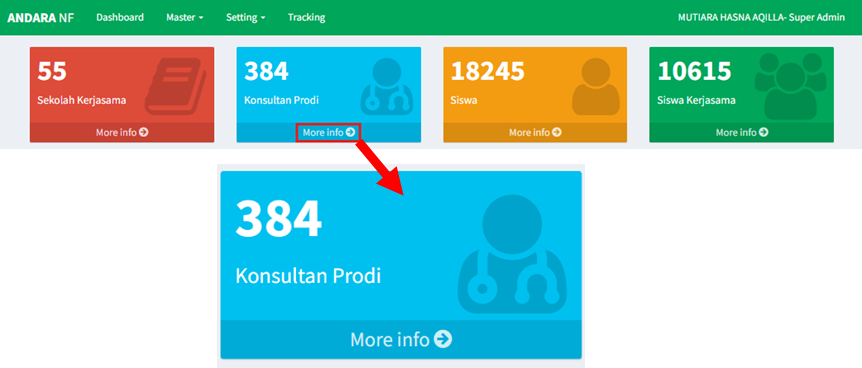
<p class="callout info"><span style="color: rgb(0, 0, 0);">Semua staff lokasi atau pegawai pusat dapat mengakses ANDARA ketika sudah ditambahkan pada menu ini.</span></p>

<span style="color: rgb(0, 0, 0);">1. Masih di halaman *Dashboard*, klik **"More Info"** pada **"*card* Konsultan Prodi"**.</span>

<span style="color: rgb(0, 0, 0);">![](https://images.bimbelnurulfikri.id/uploads/images/gallery/2025-02/embedded-image-qvvkls0y.png)</span>

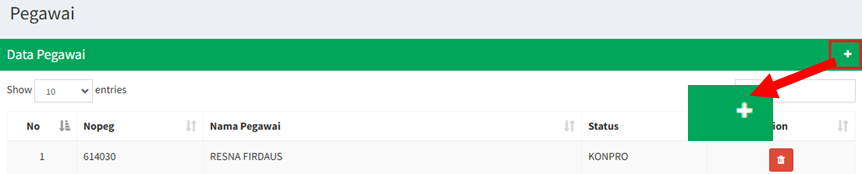
<span style="color: rgb(0, 0, 0);">2. Klik **(+)** untuk menambahkan data pegawai yang nantinya akan mengakses ANDARA. </span>
![](https://images.bimbelnurulfikri.id/uploads/images/gallery/2025-02/embedded-image-lhwgsdpg.png)

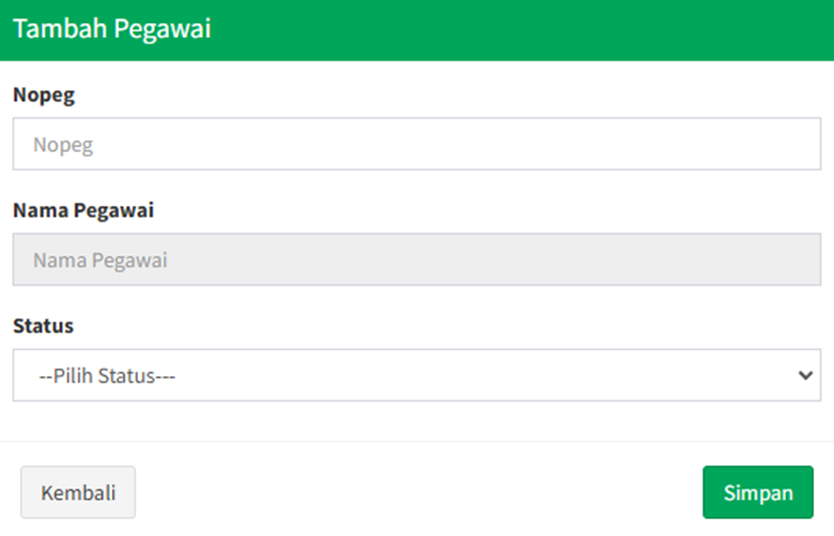
<span style="color: rgb(0, 0, 0);">3. Isilah semua data yang tertera pada **"tabel Tambah Pegawai"** sesuai ketentuan di bawah.</span>

<span style="color: rgb(0, 0, 0);">![](https://images.bimbelnurulfikri.id/uploads/images/gallery/2025-02/embedded-image-bvmi0xkx.png)</span>

<table border="1" id="bkmrk-no-kolom-penjelasan-" style="border-collapse: collapse; width: 100.476%; height: 123.953px; border-width: 1px; border-style: inset;"><colgroup><col style="width: 10.7046%;"></col><col style="width: 25.6098%;"></col><col style="width: 63.6856%;"></col></colgroup><thead><tr style="height: 29.7969px;"><td class="align-center" style="height: 29.7969px;"><span style="color: rgb(0, 0, 0);">**No**</span></td><td class="align-center" style="height: 29.7969px;"><span style="color: rgb(0, 0, 0);">**Kolom**</span></td><td class="align-center" style="height: 29.7969px;"><span style="color: rgb(0, 0, 0);">**Penjelasan**</span></td></tr></thead><tbody><tr style="height: 29.7969px;"><td style="height: 29.7969px;"><span style="color: rgb(0, 0, 0);">1</span></td><td style="height: 29.7969px;"><span style="color: rgb(0, 0, 0);">Nopeg</span></td><td style="height: 29.7969px;"><span style="color: rgb(0, 0, 0);">Nomor pegawai yang terdaftar di SIKOCLOUD</span></td></tr><tr style="height: 31.9844px;"><td style="height: 31.9844px;"><span style="color: rgb(0, 0, 0);">2</span></td><td style="height: 31.9844px;"><span style="color: rgb(0, 0, 0);">Nama Pegawai</span></td><td style="height: 31.9844px;"><span style="color: rgb(0, 0, 0);">Nama pegawai akan otomatis muncul berdasarkan nomor pegawai yang Anda cari</span></td></tr><tr style="height: 32.375px;"><td style="height: 32.375px;"><span style="color: rgb(0, 0, 0);">3</span></td><td style="height: 32.375px;"><span style="color: rgb(0, 0, 0);">Status</span></td><td style="height: 32.375px;"><span style="color: #000000;">Status pegawai di Nurul Fikri</span></td></tr></tbody></table>

<span style="color: rgb(0, 0, 0);">4. Klik **"Kembali"** untuk membatalkan pengisian data atau klik **"Simpan"** untuk menyimpan data pegawai.  
5\. Maka, data pegawai yang sudah dimasukkan tadi tersimpan di **"tabel Data Pegawai"**.</span>

[![image.png](https://images.bimbelnurulfikri.id/uploads/images/gallery/2025-02/scaled-1680-/qaCimage.png)](https://images.bimbelnurulfikri.id/uploads/images/gallery/2025-02/qaCimage.png)

# Menghapus Akses ANDARA dari Pegawai

<span style="color: rgb(0, 0, 0);">1. Masih di halaman *Dashboard*, klik **"More Info"** pada **"*card* Konsultan Prodi"**.</span>

<span style="color: rgb(0, 0, 0);">![](https://images.bimbelnurulfikri.id/uploads/images/gallery/2025-02/embedded-image-qvvkls0y.png)</span>

<span style="color: rgb(0, 0, 0);">2. Pilih salah satu pegawai yang ingin dihapus hak aksesnya, lalu klik ikon di bawah ini.</span>

<span style="color: rgb(0, 0, 0);">![](https://images.bimbelnurulfikri.id/uploads/images/gallery/2025-02/embedded-image-drmrckrh.png)</span>

<span style="color: rgb(0, 0, 0);">3. Akan muncul popup seperti ini, lalu klik **"OK"**.</span>

<span style="color: rgb(0, 0, 0);">[![image.png](https://images.bimbelnurulfikri.id/uploads/images/gallery/2025-02/scaled-1680-/57Dimage.png)](https://images.bimbelnurulfikri.id/uploads/images/gallery/2025-02/57Dimage.png)</span>

<p class="callout success"><span style="color: rgb(0, 0, 0);">Data berhasil terhapus!</span></p>

# Data Siswa

!! FITUR DALAM TAHAP PENGEMBANGAN !!

# Data Siswa Kerjasama

!! FITUR DALAM TAHAP PENGEMBANGAN !!

# Kurikulum


# Menambah Data Kurikulum

<span style="color: rgb(0, 0, 0);">1. Pada halaman *Dashboard*, klik **"navbar menu Master"**.</span>

<span style="color: rgb(0, 0, 0);">![](https://images.bimbelnurulfikri.id/uploads/images/gallery/2025-02/embedded-image-tjst39fp.png)</span>

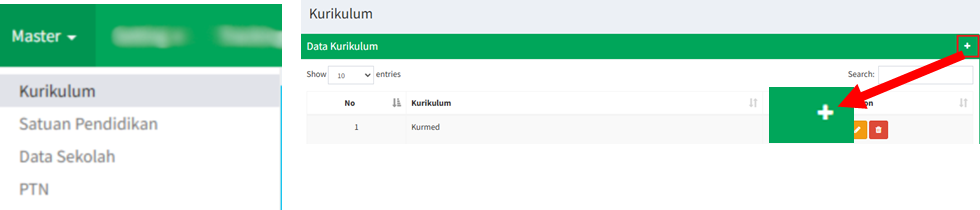
<span style="color: rgb(0, 0, 0);">2. Pilih **"menu Kurikulum"**, lalu klik ikon **(+)** di bawah ini.</span>

![](https://images.bimbelnurulfikri.id/uploads/images/gallery/2025-02/embedded-image-43gxzn5r.png)

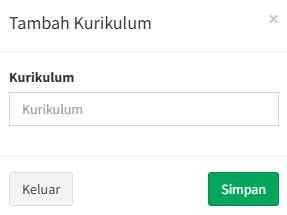
<span style="color: rgb(0, 0, 0);">3. Isilah dengan kurikulum yang berlaku pada sekolah saat ini.</span>

<span style="color: rgb(0, 0, 0);">[![image.png](https://images.bimbelnurulfikri.id/uploads/images/gallery/2025-02/scaled-1680-/3rGimage.png)](https://images.bimbelnurulfikri.id/uploads/images/gallery/2025-02/3rGimage.png)</span>

<span style="color: rgb(0, 0, 0);">4. Klik **"Keluar"** untuk membatalkan pengisian data atau klik **"Simpan"** untuk menyimpan data kurikulum.</span>  
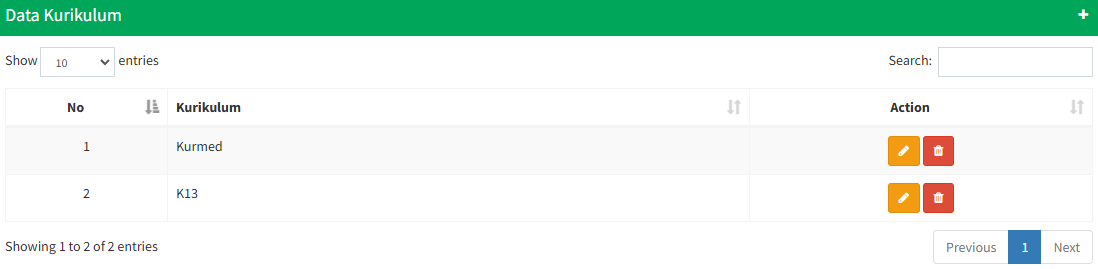
<span style="color: rgb(0, 0, 0);">5. Maka, data kurikulum yang sudah dimasukkan tadi tersimpan di **"tabel Data Kurikulum"**.</span>

[![image.png](https://images.bimbelnurulfikri.id/uploads/images/gallery/2025-02/scaled-1680-/Bvvimage.png)](https://images.bimbelnurulfikri.id/uploads/images/gallery/2025-02/Bvvimage.png)

# Mengedit Data Kurikulum

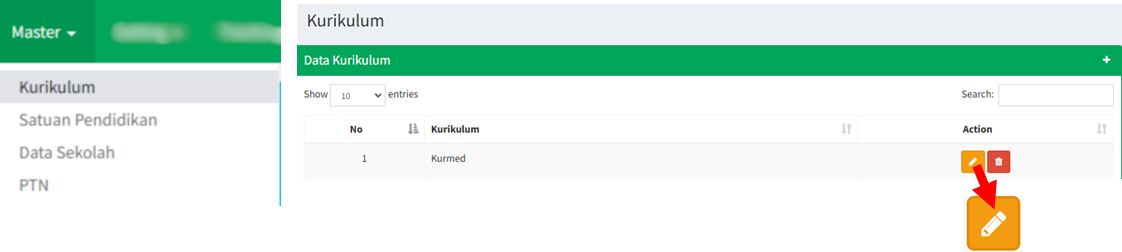
<span style="color: rgb(0, 0, 0);">1. Masih pada halaman **"menu Kurikulum"**, klik ikon berikut ini.</span>

<span style="color: rgb(0, 0, 0);">![](https://images.bimbelnurulfikri.id/uploads/images/gallery/2025-02/embedded-image-ydfbxcir.png)</span>

<span style="color: rgb(0, 0, 0);">2. Isilah dengan kurikulum yang berlaku pada sekolah saat ini, lalu klik **"Simpan"**.</span>

<p class="callout success"><span style="color: rgb(0, 0, 0);">Data kurikulum sudah berhasil diganti!</span></p>

# Menghapus Data Kurikulum

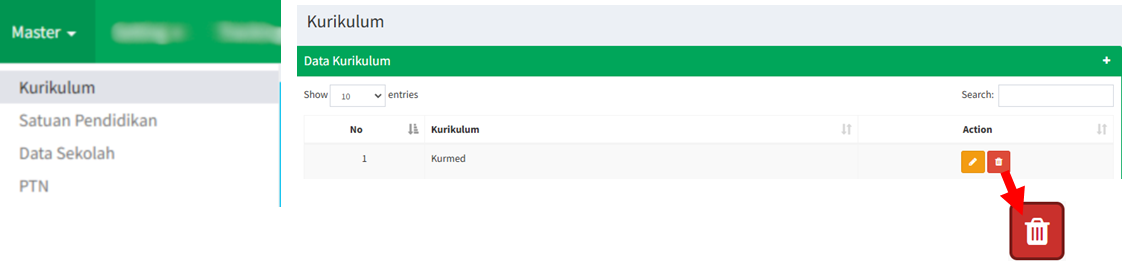
<span style="color: rgb(0, 0, 0);">1. Masih pada halaman **"menu Kurikulum"**, klik ikon berikut ini.</span>

![](https://images.bimbelnurulfikri.id/uploads/images/gallery/2025-02/embedded-image-1jpuqrdb.png)

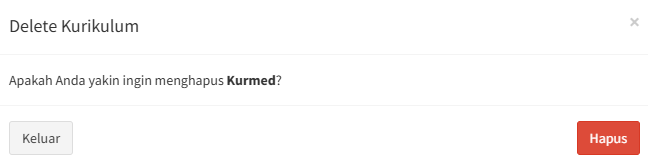
<span style="color: rgb(0, 0, 0);">2. Klik **"Hapus"**.</span>

[![image.png](https://images.bimbelnurulfikri.id/uploads/images/gallery/2025-02/scaled-1680-/nArimage.png)](https://images.bimbelnurulfikri.id/uploads/images/gallery/2025-02/nArimage.png)

<p class="callout success"><span style="color: rgb(0, 0, 0);">Data kurikulum sudah berhasil dihapus!</span></p>

# Satuan Pendidikan


# Menambah Satuan Pendidikan (Jenjang)

<span style="color: rgb(0, 0, 0);">1. Pada halaman *Dashboard*, klik **"navbar menu Master"**.</span>

<span style="color: rgb(0, 0, 0);">![](https://images.bimbelnurulfikri.id/uploads/images/gallery/2025-02/embedded-image-tjst39fp.png)</span>

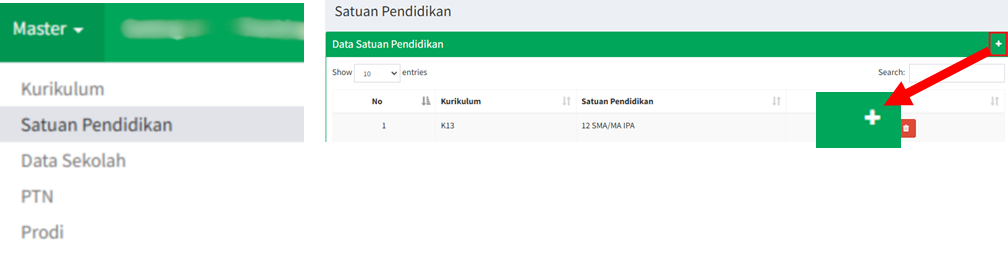
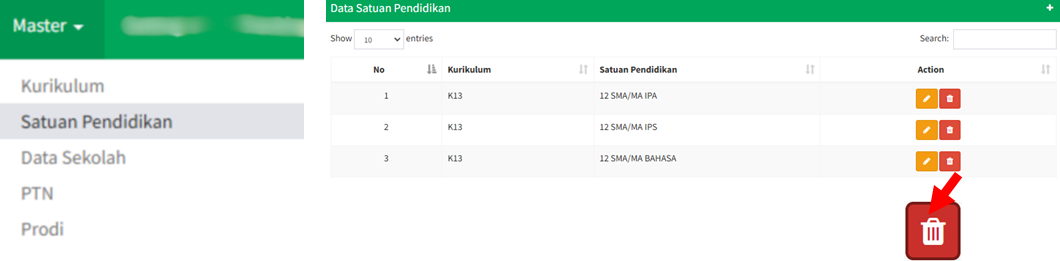
<span style="color: rgb(0, 0, 0);">2. Pilih **"menu Satuan Pendidikan"**, lalu klik ikon **(+)** di bawah ini.</span>

<span style="color: rgb(0, 0, 0);">![](https://images.bimbelnurulfikri.id/uploads/images/gallery/2025-02/embedded-image-h4hijvyy.png)</span>

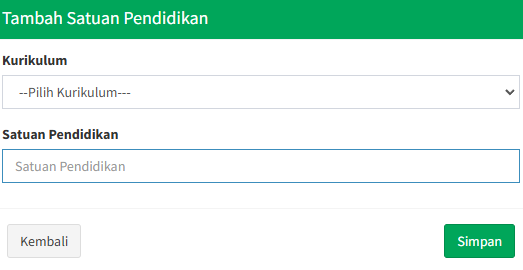
<span style="color: rgb(0, 0, 0);">3. Isilah semua data yang tertera pada **"tabel Tambah Satuan Pendidikan"** sesuai ketentuan di bawah.</span>

[![image.png](https://images.bimbelnurulfikri.id/uploads/images/gallery/2025-02/scaled-1680-/HYOimage.png)](https://images.bimbelnurulfikri.id/uploads/images/gallery/2025-02/HYOimage.png)

<table border="1" id="bkmrk-no-kolom-penjelasan-" style="border-collapse: collapse; width: 100.476%; height: 91.5782px; border-width: 1px; border-style: inset;"><colgroup><col style="width: 10.7046%;"></col><col style="width: 25.6098%;"></col><col style="width: 63.6856%;"></col></colgroup><thead><tr style="height: 29.7969px;"><td class="align-center" style="height: 29.7969px;"><span style="color: rgb(0, 0, 0);">**No**</span></td><td class="align-center" style="height: 29.7969px;"><span style="color: rgb(0, 0, 0);">**Kolom**</span></td><td class="align-center" style="height: 29.7969px;"><span style="color: rgb(0, 0, 0);">**Penjelasan**</span></td></tr></thead><tbody><tr style="height: 29.7969px;"><td style="height: 29.7969px;"><span style="color: rgb(0, 0, 0);">1</span></td><td style="height: 29.7969px;"><span style="color: rgb(0, 0, 0);">Kurikulum</span></td><td style="height: 29.7969px;"><span style="color: rgb(0, 0, 0);">Kurikulum yang sedang berjalan saat ini (**KURMED / K13**)</span>

</td></tr><tr style="height: 31.9844px;"><td style="height: 31.9844px;"><span style="color: rgb(0, 0, 0);">2</span></td><td style="height: 31.9844px;"><span style="color: rgb(0, 0, 0);">Satuan Pendidikan</span></td><td style="height: 31.9844px;"><span style="color: rgb(0, 0, 0);">Jenjang pendidikan saat ini (**SD/SMP/SMA/SMA/SMK/MA**)</span></td></tr></tbody></table>

<span style="color: rgb(0, 0, 0);">4. Klik **"Kembali"** untuk membatalkan pengisian data atau klik **"Simpan"** untuk menyimpan data kurikulum dan satuan pendidikan.</span>  
<span style="color: rgb(0, 0, 0);">5. Maka, data kurikulum dan satuan pendidikan yang sudah dimasukkan tadi tersimpan di **"tabel Data Satuan Pendidikan"**.</span>

[![image.png](https://images.bimbelnurulfikri.id/uploads/images/gallery/2025-02/scaled-1680-/hsSimage.png)](https://images.bimbelnurulfikri.id/uploads/images/gallery/2025-02/hsSimage.png)

# Mengedit Satuan Pendidikan (Jenjang)

<span style="color: rgb(0, 0, 0);">1. Masih pada halaman **"menu Satuan Pendidikan"**, klik ikon berikut ini.</span>

![](https://images.bimbelnurulfikri.id/uploads/images/gallery/2025-02/embedded-image-fvs9ktow.png)

<span style="color: rgb(0, 0, 0);">2. Sesuaikan kurikulum dan jenjang pendidikan yang sedang berjalan (**SD/SMP/SMA/SMK/MA**)</span><span style="color: rgb(0, 0, 0);">, lalu klik **"Simpan"**.</span>

[![image.png](https://images.bimbelnurulfikri.id/uploads/images/gallery/2025-02/scaled-1680-/lBGimage.png)](https://images.bimbelnurulfikri.id/uploads/images/gallery/2025-02/lBGimage.png)

<p class="callout success"><span style="color: rgb(0, 0, 0);">Data satuan pendidikan sudah berhasil diganti!</span></p>

# Menghapus Satuan Pendidikan (Jenjang)

<span style="color: rgb(0, 0, 0);">1. Masih pada halaman **"menu Satuan Pendidikan"**, klik ikon berikut ini.</span>

[![image.png](https://images.bimbelnurulfikri.id/uploads/images/gallery/2025-02/scaled-1680-/Tpzimage.png)](https://images.bimbelnurulfikri.id/uploads/images/gallery/2025-02/Tpzimage.png)

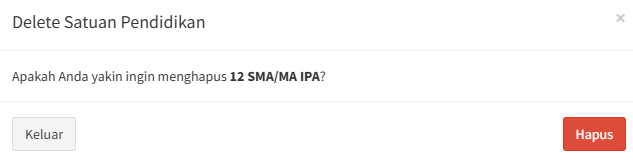
<span style="color: rgb(0, 0, 0);">2. Klik **"Hapus"**.</span>

[![image.png](https://images.bimbelnurulfikri.id/uploads/images/gallery/2025-02/scaled-1680-/ERHimage.png)](https://images.bimbelnurulfikri.id/uploads/images/gallery/2025-02/ERHimage.png)

<p class="callout success"><span style="color: rgb(0, 0, 0);">Data satuan pendidikan sudah berhasil dihapus!</span></p>

# Data Sekolah


# Menambahkan Data Sekolah Kerjasama

<p class="callout info"><span style="color: rgb(0, 0, 0);"><span style="color: #000000;">Ada dua cara untuk mengakses halaman data sekolah kerjasama. Salah satunya adalah dengan [klik di sini untuk melihat tahapan pertama](https://kb.bimbelnf.com/books/panduan-umum-superadmin/page/menambahkan-data-sekolah-kerjasama-We7).</span></span></p>

<span style="color: rgb(0, 0, 0);">1. Pada halaman *Dashboard*, klik **"navbar menu Master"**.</span>

<span style="color: rgb(0, 0, 0);">![](https://images.bimbelnurulfikri.id/uploads/images/gallery/2025-02/embedded-image-tjst39fp.png)</span>

<span style="color: rgb(0, 0, 0);">2. Pilih **"menu Data Sekolah"**, lalu klik ikon **(+)** di bawah ini.</span>

<span style="color: rgb(0, 0, 0);">![](https://images.bimbelnurulfikri.id/uploads/images/gallery/2025-02/embedded-image-uwts1dry.png)</span>

<span style="color: rgb(0, 0, 0);">3. Isilah semua data yang tertera pada **"popup Tambah NPSN"** sesuai ketentuan di bawah.</span>

<span style="color: rgb(0, 0, 0);">![](https://images.bimbelnurulfikri.id/uploads/images/gallery/2025-02/embedded-image-9blr03id.png)</span>

<table border="1" id="bkmrk-no-kolom-penjelasan-" style="border-collapse: collapse; width: 100.476%; height: 270.11px; border-width: 1px; border-style: inset;"><colgroup><col style="width: 10.7046%;"></col><col style="width: 25.6098%;"></col><col style="width: 63.6856%;"></col></colgroup><thead><tr style="height: 29.7969px;"><td class="align-center" style="height: 29.7969px;"><span style="color: rgb(0, 0, 0);">**No**</span></td><td class="align-center" style="height: 29.7969px;"><span style="color: rgb(0, 0, 0);">**Kolom**</span></td><td class="align-center" style="height: 29.7969px;"><span style="color: rgb(0, 0, 0);">**Penjelasan**</span></td></tr></thead><tbody><tr style="height: 52.1875px;"><td style="height: 52.1875px;"><span style="color: rgb(0, 0, 0);">1</span></td><td style="height: 52.1875px;"><span style="color: rgb(0, 0, 0);">NPSN</span></td><td style="height: 52.1875px;"><span style="color: rgb(0, 0, 0);">Anda bisa mencari semua NPSN Sekolah Kerjasama di</span>  
<span style="color: rgb(0, 0, 0);">[https://dapo.dikdasmen.go.id/](https://dapo.dikdasmen.go.id/) </span></td></tr><tr style="height: 31.9844px;"><td style="height: 31.9844px;"><span style="color: rgb(0, 0, 0);">2</span></td><td style="height: 31.9844px;"><span style="color: rgb(0, 0, 0);">Sekolah</span></td><td style="height: 31.9844px;"><span style="color: rgb(0, 0, 0);">Nama sekolah akan otomatis muncul berdasarkan nomor NPSN yang Anda cari</span></td></tr><tr style="height: 32.375px;"><td style="height: 32.375px;"><span style="color: rgb(0, 0, 0);">3</span></td><td style="height: 32.375px;"><span style="color: rgb(0, 0, 0);">Akreditasi</span></td><td style="height: 32.375px;"><span style="color: rgb(0, 0, 0);">Akreditasi sekolah tersebut (**A/B/C**)</span></td></tr><tr style="height: 29.7969px;"><td style="height: 29.7969px;"><span style="color: rgb(0, 0, 0);">4</span></td><td style="height: 29.7969px;"><span style="color: rgb(0, 0, 0);">Provinsi</span></td><td style="height: 29.7969px;"><span style="color: rgb(0, 0, 0);">Provinsi sekolah tersebut</span>

</td></tr><tr style="height: 34.375px;"><td style="height: 34.375px;"><span style="color: rgb(0, 0, 0);">5</span></td><td style="height: 34.375px;"><span style="color: rgb(0, 0, 0);">Tahun Kerjasama</span></td><td style="height: 34.375px;"><span style="color: rgb(0, 0, 0);">Otomatis akan terisi sesuai tahun ajaran saat ini</span>

</td></tr><tr style="height: 29.7969px;"><td style="height: 29.7969px;"><span style="color: rgb(0, 0, 0);">6</span></td><td style="height: 29.7969px;"><span style="color: rgb(0, 0, 0);">Nopeg PJ NF</span></td><td style="height: 29.7969px;"><span style="color: rgb(0, 0, 0);">Nomor pegawai yang terdaftar di SIKOCLOUD</span>

</td></tr><tr style="height: 29.7969px;"><td style="height: 29.7969px;"><span style="color: rgb(0, 0, 0);">7</span></td><td style="height: 29.7969px;"><span style="color: rgb(0, 0, 0);">Nama PJ NF</span></td><td style="height: 29.7969px;"><span style="color: rgb(0, 0, 0);">Nama pegawai akan otomatis muncul berdasarkan nomor pegawai yang Anda cari</span>

</td></tr></tbody></table>

<span style="color: rgb(0, 0, 0);">4. Klik **"Keluar"** untuk membatalkan pengisian data atau klik **"Simpan"** untuk menyimpan data sekolah.  
5\. Maka, data sekolah yang sudah dimasukkan tadi tersimpan di **"tabel Data Sekolah Kerjasama"**.</span>

<span style="color: rgb(0, 0, 0);">[![image.png](https://images.bimbelnurulfikri.id/uploads/images/gallery/2025-02/scaled-1680-/Pdpimage.png)](https://images.bimbelnurulfikri.id/uploads/images/gallery/2025-02/Pdpimage.png)</span>

# Mengedit Data Sekolah Kerjasama

<span style="color: rgb(0, 0, 0);">1. Masih pada halaman **"menu Data Sekolah"**, klik ikon berikut ini.</span>

<span style="color: rgb(0, 0, 0);">![](https://images.bimbelnurulfikri.id/uploads/images/gallery/2025-02/embedded-image-ff4976hw.png)</span>

<span style="color: rgb(0, 0, 0);">2. Sesuaikan semua data pada form dengan benar sesuai kriteria yang ditentukan,</span><span style="color: rgb(0, 0, 0);"> lalu klik **"Simpan"**.</span>

![](https://images.bimbelnurulfikri.id/uploads/images/gallery/2025-02/embedded-image-9blr03id.png)

<table border="1" id="bkmrk-no-kolom-penjelasan-" style="border-collapse: collapse; width: 100.476%; height: 266.11px; border-width: 1px; border-style: inset;"><colgroup><col style="width: 10.7046%;"></col><col style="width: 25.6098%;"></col><col style="width: 63.6856%;"></col></colgroup><thead><tr style="height: 29.7969px;"><td class="align-center" style="height: 29.7969px;"><span style="color: rgb(0, 0, 0);">**No**</span></td><td class="align-center" style="height: 29.7969px;"><span style="color: rgb(0, 0, 0);">**Kolom**</span></td><td class="align-center" style="height: 29.7969px;"><span style="color: rgb(0, 0, 0);">**Penjelasan**</span></td></tr></thead><tbody><tr style="height: 52.1875px;"><td style="height: 52.1875px;"><span style="color: rgb(0, 0, 0);">1</span></td><td style="height: 52.1875px;"><span style="color: rgb(0, 0, 0);">NPSN</span></td><td style="height: 52.1875px;"><span style="color: rgb(0, 0, 0);">Anda bisa mencari semua NPSN Sekolah Kerjasama di</span>  
<span style="color: rgb(0, 0, 0);">[https://dapo.dikdasmen.go.id/](https://dapo.dikdasmen.go.id/) </span></td></tr><tr style="height: 27.9844px;"><td style="height: 27.9844px;"><span style="color: rgb(0, 0, 0);">2</span></td><td style="height: 27.9844px;"><span style="color: rgb(0, 0, 0);">Sekolah</span></td><td style="height: 27.9844px;"><span style="color: rgb(0, 0, 0);">Nama sekolah akan otomatis muncul berdasarkan nomor NPSN yang Anda cari</span></td></tr><tr style="height: 32.375px;"><td style="height: 32.375px;"><span style="color: rgb(0, 0, 0);">3</span></td><td style="height: 32.375px;"><span style="color: rgb(0, 0, 0);">Akreditasi</span></td><td style="height: 32.375px;"><span style="color: rgb(0, 0, 0);">Akreditasi sekolah tersebut (**A/B/C**)</span></td></tr><tr style="height: 29.7969px;"><td style="height: 29.7969px;"><span style="color: rgb(0, 0, 0);">4</span></td><td style="height: 29.7969px;"><span style="color: rgb(0, 0, 0);">Provinsi</span></td><td style="height: 29.7969px;"><span style="color: rgb(0, 0, 0);">Provinsi sekolah tersebut</span>

</td></tr><tr style="height: 34.375px;"><td style="height: 34.375px;"><span style="color: rgb(0, 0, 0);">5</span></td><td style="height: 34.375px;"><span style="color: rgb(0, 0, 0);">Tahun Kerjasama</span></td><td style="height: 34.375px;"><span style="color: rgb(0, 0, 0);">Otomatis akan terisi sesuai tahun ajaran saat ini</span>

</td></tr><tr style="height: 29.7969px;"><td style="height: 29.7969px;"><span style="color: rgb(0, 0, 0);">6</span></td><td style="height: 29.7969px;"><span style="color: rgb(0, 0, 0);">Nopeg PJ NF</span></td><td style="height: 29.7969px;"><span style="color: rgb(0, 0, 0);">Nomor pegawai yang terdaftar di SIKOCLOUD</span>

</td></tr><tr style="height: 29.7969px;"><td style="height: 29.7969px;"><span style="color: rgb(0, 0, 0);">7</span></td><td style="height: 29.7969px;"><span style="color: rgb(0, 0, 0);">Nama PJ NF</span></td><td style="height: 29.7969px;"><span style="color: rgb(0, 0, 0);">Nama pegawai akan otomatis muncul berdasarkan nomor pegawai yang Anda cari</span>

</td></tr></tbody></table>

<span style="color: rgb(0, 0, 0);">3. Klik **"Keluar"** untuk membatalkan pengisian data atau klik **"Simpan"** untuk menyimpan data sekolah.  
4\. Maka, data sekolah yang sudah diubah tadi akan tersimpan di **"tabel Data Sekolah Kerjasama"**.</span>

[![image.png](https://images.bimbelnurulfikri.id/uploads/images/gallery/2025-02/scaled-1680-/Pdpimage.png)](https://images.bimbelnurulfikri.id/uploads/images/gallery/2025-02/Pdpimage.png)

# Menghapus Data Sekolah

<span style="color: rgb(0, 0, 0);">1. Masih pada halaman **"menu Data Sekolah"**, klik ikon berikut ini.</span>

![](https://images.bimbelnurulfikri.id/uploads/images/gallery/2025-02/embedded-image-uw3h6jrm.png)

<span style="color: rgb(0, 0, 0);">2. Klik **"Hapus"**.</span>

[![image.png](https://images.bimbelnurulfikri.id/uploads/images/gallery/2025-02/scaled-1680-/Mjuimage.png)](https://images.bimbelnurulfikri.id/uploads/images/gallery/2025-02/Mjuimage.png)

<p class="callout success"><span style="color: rgb(0, 0, 0);">Data sekolah kerjasama sudah berhasil dihapus!</span></p>

# PTN


# Menambahkan Data PTN

<p class="callout info"><span style="color: rgb(0, 0, 0);">Semua daftar PTN yang ada disini akan muncul di **halaman Pilih Prodi** pada **akun siswa**.</span></p>

<span style="color: rgb(0, 0, 0);">1. Pada halaman *Dashboard*, klik **"navbar menu Master"**.</span>

<span style="color: rgb(0, 0, 0);">![](https://images.bimbelnurulfikri.id/uploads/images/gallery/2025-02/embedded-image-tjst39fp.png)</span>

<span style="color: rgb(0, 0, 0);">2. Pilih **"menu PTN"**, lalu klik ikon **(+)** di bawah ini.</span>

<span style="color: rgb(0, 0, 0);">![](https://images.bimbelnurulfikri.id/uploads/images/gallery/2025-02/embedded-image-hx1zocqz.png)</span>

<span style="color: rgb(0, 0, 0);">3. Isilah nama perguruan tinggi negeri yang diinginkan pada **"popup Tambah PTN"**.</span>

<span style="color: rgb(0, 0, 0);">4. Klik **"Kembali"** untuk membatalkan pengisian data atau klik **"Simpan"** untuk menyimpan data perguruan tinggi negeri.</span>

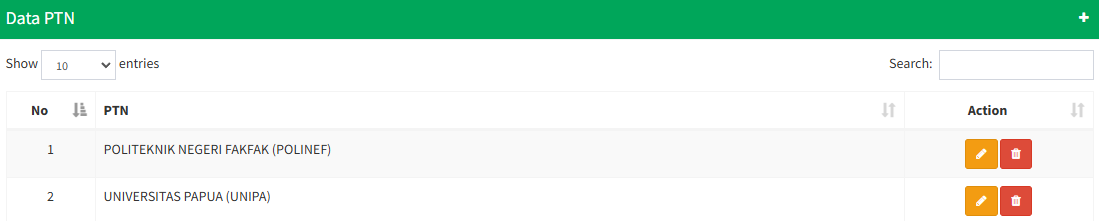
<span style="color: rgb(0, 0, 0);">5. Maka, data perguruan tinggi negeri yang sudah dimasukkan tadi tersimpan di **"tabel Data PTN"**.</span>

[![image.png](https://images.bimbelnurulfikri.id/uploads/images/gallery/2025-02/scaled-1680-/kbUimage.png)](https://images.bimbelnurulfikri.id/uploads/images/gallery/2025-02/kbUimage.png)

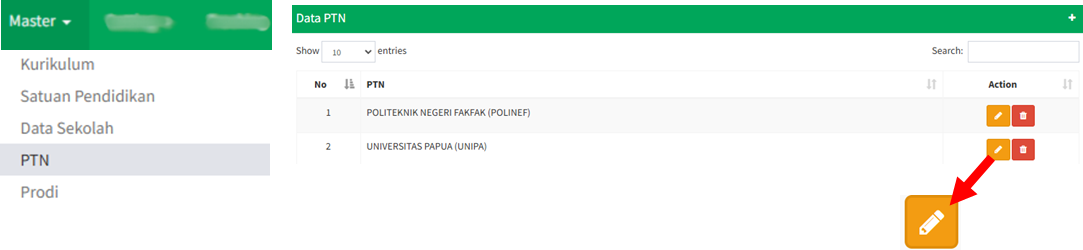
# Mengedit Data PTN

<span style="color: rgb(0, 0, 0);">1. Masih pada halaman **"menu PTN"**, klik ikon berikut ini.</span>

![](https://images.bimbelnurulfikri.id/uploads/images/gallery/2025-02/embedded-image-jlmwfgkc.png)

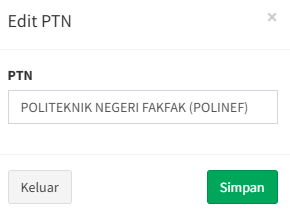
<span style="color: rgb(0, 0, 0);">2. Isilah dengan nama PTN yang diinginkan</span><span style="color: rgb(0, 0, 0);">, lalu klik **"Simpan"**.</span>

[![image.png](https://images.bimbelnurulfikri.id/uploads/images/gallery/2025-02/scaled-1680-/rM4image.png)](https://images.bimbelnurulfikri.id/uploads/images/gallery/2025-02/rM4image.png)

<p class="callout success"><span style="color: rgb(0, 0, 0);">Data PTN sudah berhasil diganti!</span></p>

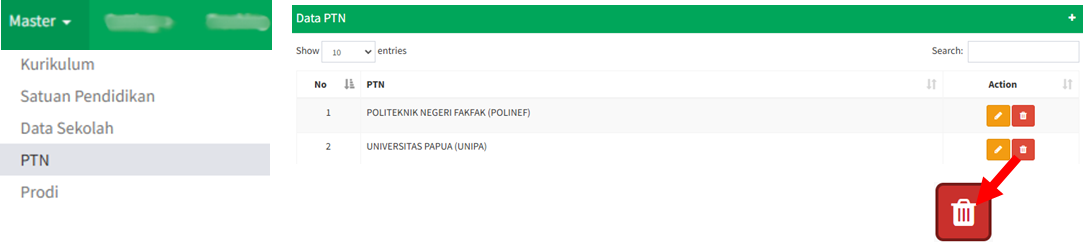
# Menghapus Data PTN

<span style="color: rgb(0, 0, 0);">1. Masih pada halaman **"menu PTN"**, klik ikon berikut ini.</span>

![](https://images.bimbelnurulfikri.id/uploads/images/gallery/2025-02/embedded-image-b4hnotgk.png)

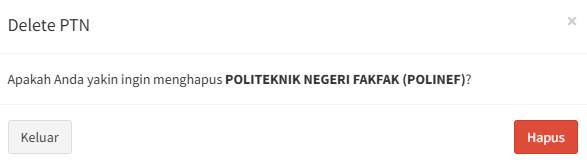
<span style="color: rgb(0, 0, 0);">2. Klik **"Hapus"**.</span>

[![image.png](https://images.bimbelnurulfikri.id/uploads/images/gallery/2025-02/scaled-1680-/N0pimage.png)](https://images.bimbelnurulfikri.id/uploads/images/gallery/2025-02/N0pimage.png)

<p class="callout success"><span style="color: rgb(0, 0, 0);">Data PTN sudah berhasil dihapus!</span></p>

# Prodi


# Menambahkan Data Program Studi

<span style="color: rgb(0, 0, 0);">1. Pada halaman *Dashboard*, klik **"navbar menu Master"**.</span>

<span style="color: rgb(0, 0, 0);">![](https://images.bimbelnurulfikri.id/uploads/images/gallery/2025-02/embedded-image-tjst39fp.png)</span>

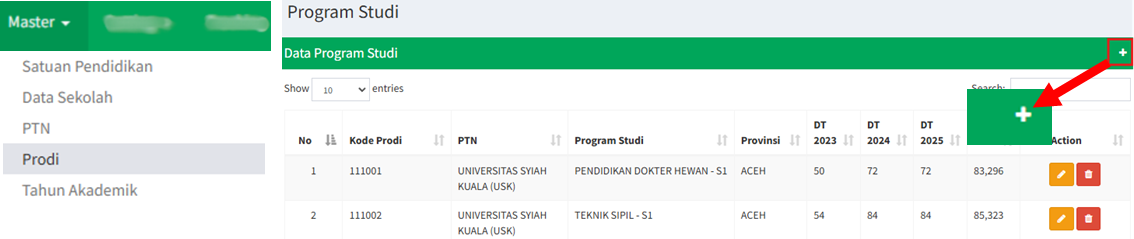
<span style="color: rgb(0, 0, 0);">2. Pilih **"menu Prodi"**, lalu klik ikon **(+)** di bawah ini.</span>

<span style="color: rgb(0, 0, 0);">![](https://images.bimbelnurulfikri.id/uploads/images/gallery/2025-02/embedded-image-befnfqno.png)</span>

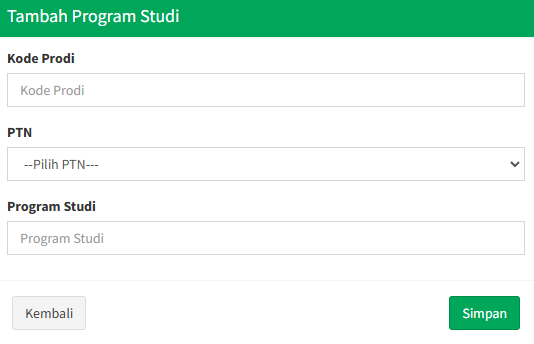
<span style="color: rgb(0, 0, 0);"><span style="color: #000000;">3. Isilah semua data yang tertera pada **"tabel Tambah Program Studi"** sesuai ketentuan di bawah.</span></span>

<span style="color: rgb(0, 0, 0);">[![image.png](https://images.bimbelnurulfikri.id/uploads/images/gallery/2025-02/scaled-1680-/Xu9image.png)](https://images.bimbelnurulfikri.id/uploads/images/gallery/2025-02/Xu9image.png)</span>

<table border="1" id="bkmrk-no-kolom-penjelasan-" style="border-collapse: collapse; width: 100.476%; height: 137.766px; border-width: 1px; border-style: inset;"><colgroup><col style="width: 10.7046%;"></col><col style="width: 25.6098%;"></col><col style="width: 63.6856%;"></col></colgroup><thead><tr style="height: 29.7969px;"><td class="align-center" style="height: 29.7969px;"><span style="color: rgb(0, 0, 0);">**No**</span></td><td class="align-center" style="height: 29.7969px;"><span style="color: rgb(0, 0, 0);">**Kolom**</span></td><td class="align-center" style="height: 29.7969px;"><span style="color: rgb(0, 0, 0);">**Penjelasan**</span></td></tr></thead><tbody><tr style="height: 46.1875px;"><td style="height: 46.1875px;"><span style="color: rgb(0, 0, 0);">1</span></td><td style="height: 46.1875px;"><span style="color: rgb(0, 0, 0);">Kode Prodi</span></td><td style="height: 46.1875px;"><span style="color: rgb(0, 0, 0);">Anda bisa mencari semua kode prodi Perguruan Tinggi Negeri di <span style="color: #000000;">[http://snpmb.bppp.kemdikbud.go.id](http://snpmb.bppp.kemdikbud.go.id) </span></span>

</td></tr><tr style="height: 31.9844px;"><td style="height: 31.9844px;"><span style="color: rgb(0, 0, 0);">2</span></td><td style="height: 31.9844px;"><span style="color: rgb(0, 0, 0);">PTN</span></td><td style="height: 31.9844px;"><span style="color: rgb(0, 0, 0);"><span style="color: #000000;">Nama perguruan tinggi yang sudah atau belum tertera dalam **"tabel Data PTN"**</span></span></td></tr><tr style="height: 29.7969px;"><td style="height: 29.7969px;"><span style="color: rgb(0, 0, 0);">3</span></td><td style="height: 29.7969px;"><span style="color: rgb(0, 0, 0);">Program Studi</span></td><td style="height: 29.7969px;"><span style="color: rgb(0, 0, 0);">Program Studi yang belum tertera dalam <span style="color: #000000;">**"tabel Data Program Studi"**</span></span></td></tr></tbody></table>

<span style="color: rgb(0, 0, 0);">4. Klik **"Kembali"** untuk membatalkan pengisian data atau klik **"Simpan"** untuk menyimpan data program studi.</span>

<span style="color: rgb(0, 0, 0);">5. Maka, data perguruan tinggi negeri yang sudah dimasukkan tadi tersimpan di **"tabel Data <span style="color: #000000;">Program Studi</span>"**.</span>

# Mengedit Data Program Studi

<span style="color: rgb(0, 0, 0);">1. Masih pada halaman **"menu Prodi"**, klik ikon berikut ini.</span>

<span style="color: rgb(0, 0, 0);">![](https://images.bimbelnurulfikri.id/uploads/images/gallery/2025-02/embedded-image-ccf6z4hg.png)</span>

<span style="color: rgb(0, 0, 0);">2. Sesuaikan semua data dengan benar sesuai kriteria yang ditentukan, lalu klik **"Simpan"**.</span>

<span style="color: rgb(0, 0, 0);">[![image.png](https://images.bimbelnurulfikri.id/uploads/images/gallery/2025-02/scaled-1680-/Xu9image.png)](https://images.bimbelnurulfikri.id/uploads/images/gallery/2025-02/Xu9image.png)</span>

<table border="1" id="bkmrk-no-kolom-penjelasan-" style="border-collapse: collapse; width: 100.476%; height: 137.766px; border-width: 1px; border-style: inset;"><colgroup><col style="width: 10.7046%;"></col><col style="width: 25.6098%;"></col><col style="width: 63.6856%;"></col></colgroup><thead><tr style="height: 29.7969px;"><td class="align-center" style="height: 29.7969px;"><span style="color: rgb(0, 0, 0);">**No**</span></td><td class="align-center" style="height: 29.7969px;"><span style="color: rgb(0, 0, 0);">**Kolom**</span></td><td class="align-center" style="height: 29.7969px;"><span style="color: rgb(0, 0, 0);">**Penjelasan**</span></td></tr></thead><tbody><tr style="height: 46.1875px;"><td style="height: 46.1875px;"><span style="color: rgb(0, 0, 0);">1</span></td><td style="height: 46.1875px;"><span style="color: rgb(0, 0, 0);">Kode Prodi</span></td><td style="height: 46.1875px;"><span style="color: rgb(0, 0, 0);">Anda bisa mencari semua kode prodi Perguruan Tinggi Negeri di [http://snpmb.bppp.kemdikbud.go.id](http://snpmb.bppp.kemdikbud.go.id) </span>

</td></tr><tr style="height: 31.9844px;"><td style="height: 31.9844px;"><span style="color: rgb(0, 0, 0);">2</span></td><td style="height: 31.9844px;"><span style="color: rgb(0, 0, 0);">PTN</span></td><td style="height: 31.9844px;"><span style="color: rgb(0, 0, 0);">Nama perguruan tinggi yang sudah atau belum tertera dalam **"tabel Data PTN"**</span></td></tr><tr style="height: 29.7969px;"><td style="height: 29.7969px;"><span style="color: rgb(0, 0, 0);">3</span></td><td style="height: 29.7969px;"><span style="color: rgb(0, 0, 0);">Program Studi</span></td><td style="height: 29.7969px;"><span style="color: rgb(0, 0, 0);">Program Studi yang belum tertera dalam **"tabel Data Program Studi"**</span></td></tr></tbody></table>

<p class="callout success"><span style="color: rgb(0, 0, 0);">Data Program Studi sudah berhasil diganti!</span></p>

# Menghapus Data Program Studi

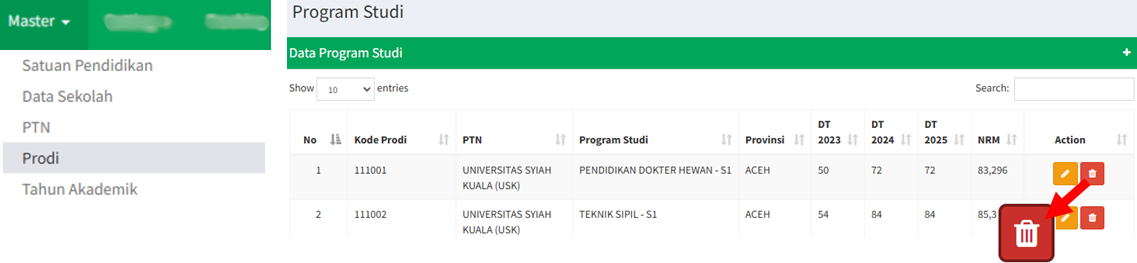
<span style="color: rgb(0, 0, 0);">1. Masih pada halaman **"menu Prodi"**, klik ikon berikut ini.</span>

![](https://images.bimbelnurulfikri.id/uploads/images/gallery/2025-02/embedded-image-r6kufgxf.png)

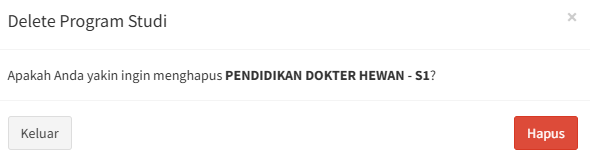
<span style="color: rgb(0, 0, 0);">2. Klik **"Hapus"**.</span>

[![image.png](https://images.bimbelnurulfikri.id/uploads/images/gallery/2025-02/scaled-1680-/MTaimage.png)](https://images.bimbelnurulfikri.id/uploads/images/gallery/2025-02/MTaimage.png)

<p class="callout success"><span style="color: rgb(0, 0, 0);">Data Program Studi sudah berhasil dihapus!</span></p>

# Tahun Akademik


# Menambahkan Data Tahun Akademik

<span style="color: rgb(0, 0, 0);">1. Pada halaman *Dashboard*, klik **"navbar menu Master"**.</span>

<span style="color: rgb(0, 0, 0);">![](https://images.bimbelnurulfikri.id/uploads/images/gallery/2025-02/embedded-image-tjst39fp.png)</span>

<span style="color: rgb(0, 0, 0);">2. Pilih **"menu Tahun Akademik"**, lalu klik ikon **(+)** di bawah ini.</span>

<span style="color: rgb(0, 0, 0);">![](https://images.bimbelnurulfikri.id/uploads/images/gallery/2025-02/embedded-image-rtgwowl5.png)</span>

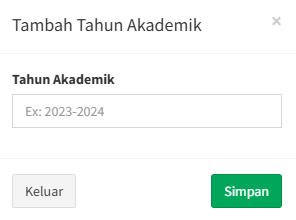
<span style="color: rgb(0, 0, 0);">3. Isilah dengan tahun ajaran yang berlaku saat ini.</span>

[![image.png](https://images.bimbelnurulfikri.id/uploads/images/gallery/2025-02/scaled-1680-/ojcimage.png)](https://images.bimbelnurulfikri.id/uploads/images/gallery/2025-02/ojcimage.png)

<span style="color: rgb(0, 0, 0);">4. Klik **"Keluar"** untuk membatalkan pengisian data atau klik **"Simpan"** untuk menyimpan data tahun akademik.</span>

<span style="color: rgb(0, 0, 0);">5. Maka, data tahun akademik yang sudah dimasukkan tadi tersimpan di **"tabel Data <span style="color: #000000;">Tahun Akademik</span>"**.</span>

# Mengedit Data Tahun Akademik

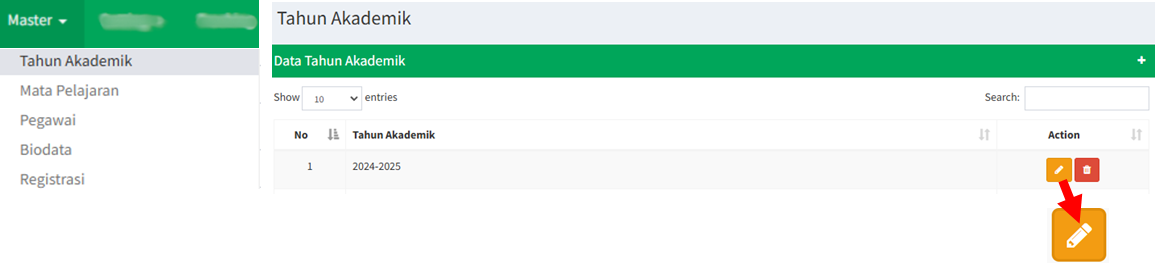
<span style="color: rgb(0, 0, 0);">1. Masih pada halaman **"menu Tahun Akademik"**, klik ikon berikut ini.</span>

<span style="color: rgb(0, 0, 0);">![](https://images.bimbelnurulfikri.id/uploads/images/gallery/2025-02/embedded-image-orak4mkt.png)</span>

<span style="color: rgb(0, 0, 0);">2. Isilah dengan tahun ajaran yang berlaku saat ini, lalu klik **"Simpan"**.</span>

<p class="callout success"><span style="color: rgb(0, 0, 0);">Data tahun akademik sudah berhasil diganti!</span></p>

# Menghapus Data Tahun Akademik

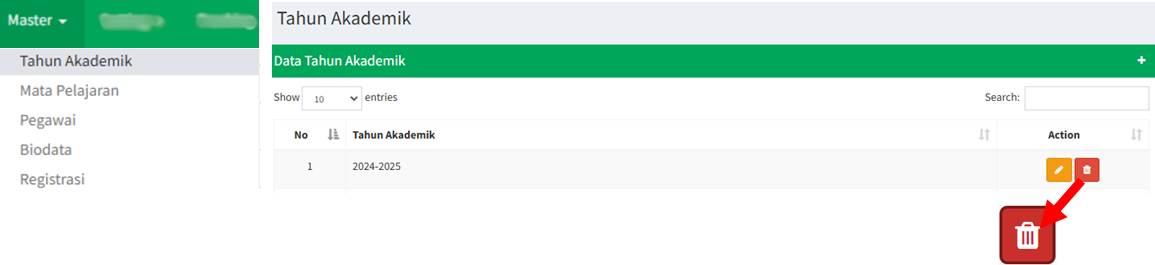
<span style="color: rgb(0, 0, 0);">1. Masih pada halaman **"menu Tahun Akademik"**, klik ikon berikut ini.</span>

![](https://images.bimbelnurulfikri.id/uploads/images/gallery/2025-02/embedded-image-bcwdpvt8.png)

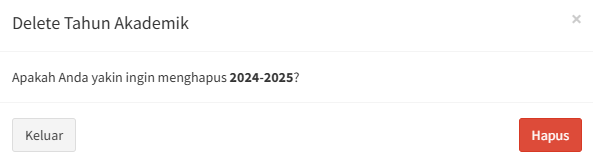
<span style="color: rgb(0, 0, 0);">2. Klik **"Hapus"**.</span>

[![image.png](https://images.bimbelnurulfikri.id/uploads/images/gallery/2025-02/scaled-1680-/sOqimage.png)](https://images.bimbelnurulfikri.id/uploads/images/gallery/2025-02/sOqimage.png)

<p class="callout success"><span style="color: rgb(0, 0, 0);">Data Tahun Akademik sudah berhasil dihapus!</span></p>

# Mata Pelajaran


# Menambahkan Mata Pelajaran

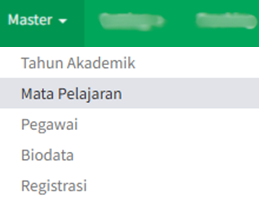
<span style="color: rgb(0, 0, 0);">1. Pada halaman *Dashboard*, klik **"navbar menu Master"**.</span>

<span style="color: rgb(0, 0, 0);">![](https://images.bimbelnurulfikri.id/uploads/images/gallery/2025-02/embedded-image-tjst39fp.png)</span>

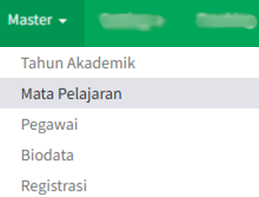
<span style="color: rgb(0, 0, 0);">2. Pilih **"menu Mata Pelajaran"**.</span>

<span style="color: rgb(0, 0, 0);">![](https://images.bimbelnurulfikri.id/uploads/images/gallery/2025-02/embedded-image-eh0mscwg.png)</span>

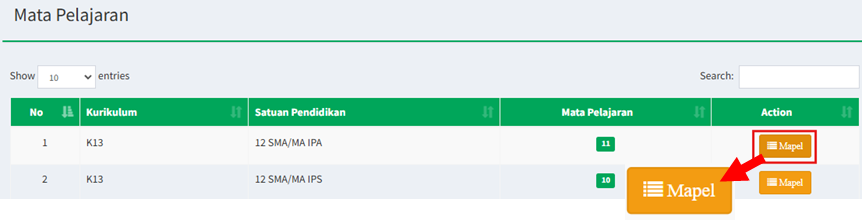
<span style="color: rgb(0, 0, 0);">3. Pilihlah salah satu jenjang pendidikan, lalu klik **"Mapel"**.</span>

<span style="color: rgb(0, 0, 0);">![](https://images.bimbelnurulfikri.id/uploads/images/gallery/2025-02/embedded-image-cgc5y8yo.png)</span>

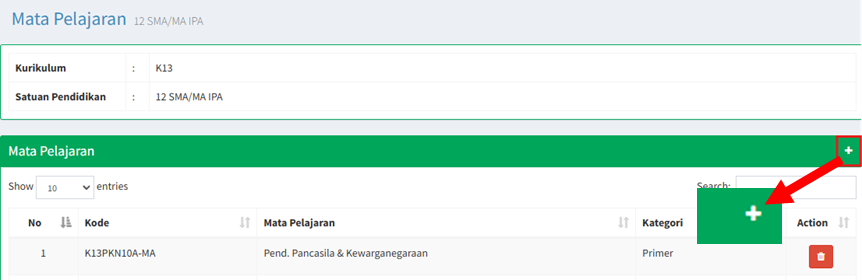
<span style="color: rgb(0, 0, 0);">4. Klik ikon berikut ini.</span>

<span style="color: rgb(0, 0, 0);">![](https://images.bimbelnurulfikri.id/uploads/images/gallery/2025-02/embedded-image-b6xdwenw.png)</span>

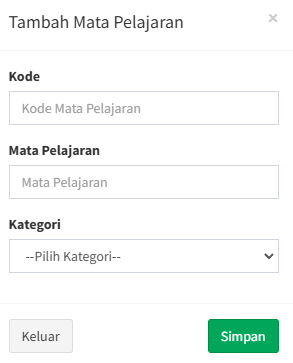
<span style="color: rgb(0, 0, 0);">5. Isilah semua data yang tertera pada **"popup Tambah Mata Pelajaran"** sesuai ketentuan di bawah.</span>

<span style="color: rgb(0, 0, 0);">[![image.png](https://images.bimbelnurulfikri.id/uploads/images/gallery/2025-02/scaled-1680-/gEximage.png)](https://images.bimbelnurulfikri.id/uploads/images/gallery/2025-02/gEximage.png)</span>

<table border="1" id="bkmrk-no-kolom-penjelasan-" style="border-collapse: collapse; width: 100.476%; height: 123.953px; border-width: 1px; border-style: inset;"><colgroup><col style="width: 10.7046%;"></col><col style="width: 25.6098%;"></col><col style="width: 63.6856%;"></col></colgroup><thead><tr style="height: 29.7969px;"><td class="align-center" style="height: 29.7969px;"><span style="color: rgb(0, 0, 0);">**No**</span></td><td class="align-center" style="height: 29.7969px;"><span style="color: rgb(0, 0, 0);">**Kolom**</span></td><td class="align-center" style="height: 29.7969px;"><span style="color: rgb(0, 0, 0);">**Penjelasan**</span></td></tr></thead><tbody><tr style="height: 29.7969px;"><td style="height: 29.7969px;"><span style="color: rgb(0, 0, 0);">1</span></td><td style="height: 29.7969px;"><span style="color: rgb(0, 0, 0);">Kode</span></td><td style="height: 29.7969px;"><span style="color: rgb(0, 0, 0);">Kode mata pelajaran</span></td></tr><tr style="height: 31.9844px;"><td style="height: 31.9844px;"><span style="color: rgb(0, 0, 0);">2</span></td><td style="height: 31.9844px;"><span style="color: rgb(0, 0, 0);">Mata Pelajaran</span></td><td style="height: 31.9844px;"><span style="color: rgb(0, 0, 0);">Nama pegawai akan otomatis muncul berdasarkan nomor pegawai yang Anda cari</span></td></tr><tr style="height: 32.375px;"><td style="height: 32.375px;"><span style="color: rgb(0, 0, 0);">3</span></td><td style="height: 32.375px;"><span style="color: rgb(0, 0, 0);">Kategori</span></td><td style="height: 32.375px;"><span style="color: rgb(0, 0, 0);">Kategori mata pelajaran di sekolah:</span>

<span style="color: #000000;">1. Primer: mata pelajaran wajib dipelajari di semua penjurusan</span>

<span style="color: #000000;">2. Pilihan: mata pelajaran yang dipelajari di salah satu penjurusan (**IPA/IPS/Kejurusan di SMK**)</span>

</td></tr></tbody></table>

<span style="color: rgb(0, 0, 0);">6. Klik **"Keluar"** untuk membatalkan pengisian data atau klik **"Simpan"** untuk menyimpan data mata pelajaran.</span>

<p class="callout success"><span style="color: rgb(0, 0, 0);">Mata Pelajaran sudah berhasil ditambahkan!</span></p>

# Menghapus Mata Pelajaran

<span style="color: rgb(0, 0, 0);">1. Pada halaman *Dashboard*, klik **"navbar menu Master"**.</span>

<span style="color: rgb(0, 0, 0);">![](https://images.bimbelnurulfikri.id/uploads/images/gallery/2025-02/embedded-image-tjst39fp.png)</span>

<span style="color: rgb(0, 0, 0);">2. Pilih **"menu Mata Pelajaran"**.</span>

<span style="color: rgb(0, 0, 0);">![](https://images.bimbelnurulfikri.id/uploads/images/gallery/2025-02/embedded-image-vsqzaft8.png)</span>

<span style="color: rgb(0, 0, 0);">3. Pilihlah salah satu jenjang pendidikan, lalu klik **"Mapel"**.</span>

![](https://images.bimbelnurulfikri.id/uploads/images/gallery/2025-02/embedded-image-cgc5y8yo.png)

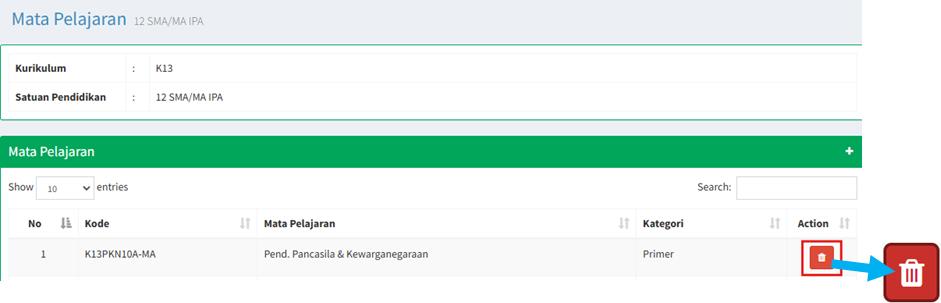
<span style="color: rgb(0, 0, 0);">4. Klik ikon berikut ini, lalu klik **"Hapus"**.</span>

![](https://images.bimbelnurulfikri.id/uploads/images/gallery/2025-02/embedded-image-onf5kqpx.png)

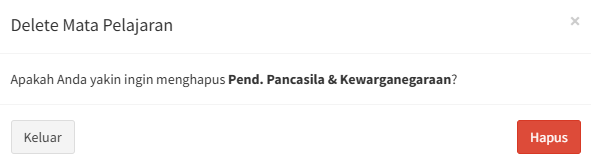
[![image.png](https://images.bimbelnurulfikri.id/uploads/images/gallery/2025-02/scaled-1680-/Jl3image.png)](https://images.bimbelnurulfikri.id/uploads/images/gallery/2025-02/Jl3image.png)

<p class="callout success"><span style="color: rgb(0, 0, 0);">Mata Pelajaran sudah berhasil dihapus!</span></p>

# Pegawai


# Memberikan Akses ANDARA Kepada Pegawai

<span style="color: rgb(0, 0, 0);">1. Pada halaman *Dashboard*, klik **"navbar menu Master"**.</span>

<span style="color: rgb(0, 0, 0);">![](https://images.bimbelnurulfikri.id/uploads/images/gallery/2025-02/embedded-image-tjst39fp.png)</span>

<span style="color: rgb(0, 0, 0);">2. Pilih **"menu Pegawai"**, lalu klik ikon **(+)** di bawah ini.</span>

<span style="color: rgb(0, 0, 0);">![](https://images.bimbelnurulfikri.id/uploads/images/gallery/2025-02/embedded-image-3n0cnwft.png)</span>

<span style="color: rgb(0, 0, 0);"><span style="color: #000000;">3. Isilah semua data yang tertera pada **"tabel Tambah Pegawai"** sesuai ketentuan di bawah.</span></span>

<span style="color: rgb(0, 0, 0);">![](https://images.bimbelnurulfikri.id/uploads/images/gallery/2025-02/embedded-image-bvmi0xkx.png)</span>

<table border="1" id="bkmrk-no-kolom-penjelasan-" style="border-collapse: collapse; width: 100.476%; height: 123.953px; border-width: 1px; border-style: inset;"><colgroup><col style="width: 10.7046%;"></col><col style="width: 25.6098%;"></col><col style="width: 63.6856%;"></col></colgroup><thead><tr style="height: 29.7969px;"><td class="align-center" style="height: 29.7969px;"><span style="color: rgb(0, 0, 0);">**No**</span></td><td class="align-center" style="height: 29.7969px;"><span style="color: rgb(0, 0, 0);">**Kolom**</span></td><td class="align-center" style="height: 29.7969px;"><span style="color: rgb(0, 0, 0);">**Penjelasan**</span></td></tr></thead><tbody><tr style="height: 29.7969px;"><td style="height: 29.7969px;"><span style="color: rgb(0, 0, 0);">1</span></td><td style="height: 29.7969px;"><span style="color: rgb(0, 0, 0);">Nopeg</span></td><td style="height: 29.7969px;"><span style="color: rgb(0, 0, 0);">Nomor pegawai yang terdaftar di SIKOCLOUD</span></td></tr><tr style="height: 31.9844px;"><td style="height: 31.9844px;"><span style="color: rgb(0, 0, 0);">2</span></td><td style="height: 31.9844px;"><span style="color: rgb(0, 0, 0);">Nama Pegawai</span></td><td style="height: 31.9844px;"><span style="color: rgb(0, 0, 0);">Nama pegawai akan otomatis muncul berdasarkan nomor pegawai yang Anda cari</span></td></tr><tr style="height: 32.375px;"><td style="height: 32.375px;"><span style="color: rgb(0, 0, 0);">3</span></td><td style="height: 32.375px;"><span style="color: rgb(0, 0, 0);">Status</span></td><td style="height: 32.375px;"><span style="color: #000000;">Status pegawai di Nurul Fikri</span></td></tr></tbody></table>

<span style="color: rgb(0, 0, 0);">4. Klik **"Kembali"** untuk membatalkan pengisian data atau klik **"Simpan"** untuk menyimpan data pegawai.  
5\. Maka, data pegawai yang sudah dimasukkan tadi tersimpan di **"tabel Data Pegawai"**.</span>

<span style="color: rgb(0, 0, 0);">[![image.png](https://images.bimbelnurulfikri.id/uploads/images/gallery/2025-02/scaled-1680-/qaCimage.png)](https://images.bimbelnurulfikri.id/uploads/images/gallery/2025-02/qaCimage.png)</span>

# Menghapus Akses ANDARA dari Pegawai

<span style="color: rgb(0, 0, 0);">1. Masih pada halaman **"menu Pegawai"**, klik ikon berikut ini.</span>

![](https://images.bimbelnurulfikri.id/uploads/images/gallery/2025-02/embedded-image-ao41iaji.png)

<span style="color: rgb(0, 0, 0);">2. Akan muncul popup seperti ini, lalu klik **"OK"**.</span>

<span style="color: rgb(0, 0, 0);">[![image.png](https://images.bimbelnurulfikri.id/uploads/images/gallery/2025-02/scaled-1680-/57Dimage.png)](https://images.bimbelnurulfikri.id/uploads/images/gallery/2025-02/57Dimage.png)</span>

<p class="callout success"><span style="color: rgb(0, 0, 0);">Data pegawai sudah berhasil dihapus!</span></p>

# Biodata

!! FITUR DALAM PENGEMBANGAN !!

# Registrasi

!! FITUR DALAM PENGEMBANGAN !!

# Pilihan Prodi

!! FITUR DALAM PENGEMBANGAN !!

# Nilai Rapor

!! FITUR DALAM PENGEMBANGAN !!

# Super Admin


# Menambahkan Hak Akses Super Admin Untuk Pegawai

<span style="color: rgb(0, 0, 0);">1. Pada halaman *Dashboard*, klik **"navbar menu Master"**.</span>

<span style="color: rgb(0, 0, 0);">![](https://images.bimbelnurulfikri.id/uploads/images/gallery/2025-02/embedded-image-tjst39fp.png)</span>

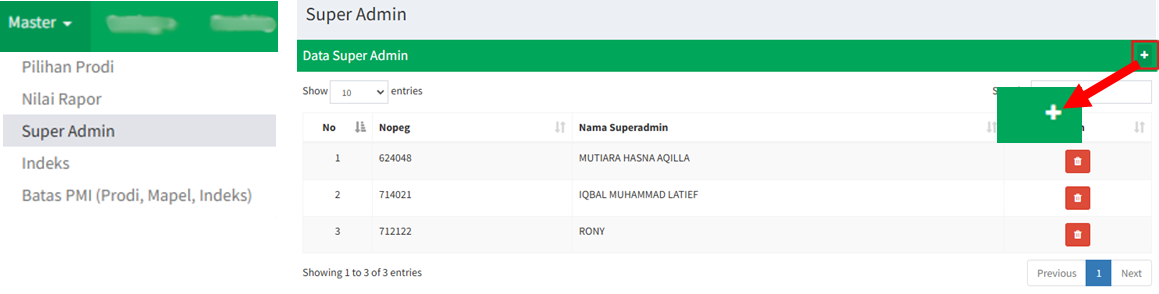
<span style="color: rgb(0, 0, 0);">2. Pilih **"menu Super Admin"**, lalu klik ikon **(+)** di bawah ini.</span>

<span style="color: rgb(0, 0, 0);">![](https://images.bimbelnurulfikri.id/uploads/images/gallery/2025-02/embedded-image-sb40szab.png)</span>

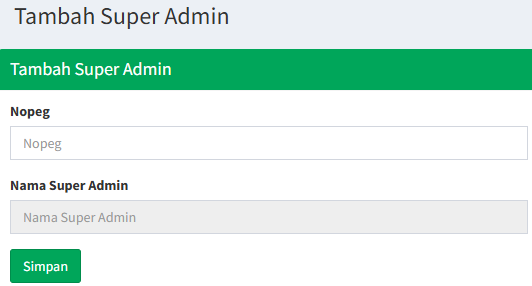
<span style="color: rgb(0, 0, 0);"><span style="color: #000000;">3. Isilah semua data yang tertera pada **"tabel Tambah Super Admin"** sesuai ketentuan di bawah.</span></span>

[![image.png](https://images.bimbelnurulfikri.id/uploads/images/gallery/2025-02/scaled-1680-/rqGimage.png)](https://images.bimbelnurulfikri.id/uploads/images/gallery/2025-02/rqGimage.png)

<table border="1" id="bkmrk-no-kolom-penjelasan-" style="border-collapse: collapse; width: 100.476%; height: 123.953px; border-width: 1px; border-style: inset;"><colgroup><col style="width: 10.7046%;"></col><col style="width: 25.6098%;"></col><col style="width: 63.6856%;"></col></colgroup><thead><tr style="height: 29.7969px;"><td class="align-center" style="height: 29.7969px;"><span style="color: rgb(0, 0, 0);">**No**</span></td><td class="align-center" style="height: 29.7969px;"><span style="color: rgb(0, 0, 0);">**Kolom**</span></td><td class="align-center" style="height: 29.7969px;"><span style="color: rgb(0, 0, 0);">**Penjelasan**</span></td></tr></thead><tbody><tr style="height: 29.7969px;"><td style="height: 29.7969px;"><span style="color: rgb(0, 0, 0);">1</span></td><td style="height: 29.7969px;"><span style="color: rgb(0, 0, 0);">Nopeg</span></td><td style="height: 29.7969px;"><span style="color: rgb(0, 0, 0);">Nomor pegawai yang terdaftar di SIKOCLOUD</span></td></tr><tr style="height: 31.9844px;"><td style="height: 31.9844px;"><span style="color: rgb(0, 0, 0);">2</span></td><td style="height: 31.9844px;"><span style="color: rgb(0, 0, 0);">Nama Super Admin</span></td><td style="height: 31.9844px;"><span style="color: rgb(0, 0, 0);">Nama pegawai akan otomatis muncul berdasarkan nomor pegawai yang Anda cari</span></td></tr></tbody></table>

<span style="color: rgb(0, 0, 0);">4. Klik **"Simpan"** untuk menyimpan data pegawai.  
5\. Maka, data pegawai yang sudah dimasukkan tadi tersimpan di **"tabel Data Pegawai"**.</span>

<span style="color: rgb(0, 0, 0);">[![image.png](https://images.bimbelnurulfikri.id/uploads/images/gallery/2025-02/scaled-1680-/qaCimage.png)](https://images.bimbelnurulfikri.id/uploads/images/gallery/2025-02/qaCimage.png)</span>

# Menghapus Hak Akses Super Admin dari Pegawai

<span style="color: rgb(0, 0, 0);">1. Masih pada halaman **"menu Pegawai"**, klik ikon berikut ini.</span>

![](https://images.bimbelnurulfikri.id/uploads/images/gallery/2025-02/embedded-image-cm7o1er1.png)

<span style="color: rgb(0, 0, 0);">2. Akan muncul popup seperti ini, lalu klik **"OK"**.</span>

<span style="color: rgb(0, 0, 0);">[![image.png](https://images.bimbelnurulfikri.id/uploads/images/gallery/2025-02/scaled-1680-/57Dimage.png)](https://images.bimbelnurulfikri.id/uploads/images/gallery/2025-02/57Dimage.png)</span>

<p class="callout success"><span style="color: rgb(0, 0, 0);">Data pegawai sudah berhasil dihapus!</span></p>

# Indeks


# Menambahkan Indeks

<span style="color: rgb(0, 0, 0);">1. Pada halaman *Dashboard*, klik **"navbar menu Master"**.</span>

<span style="color: rgb(0, 0, 0);">![](https://images.bimbelnurulfikri.id/uploads/images/gallery/2025-02/embedded-image-tjst39fp.png)</span>

<span style="color: rgb(0, 0, 0);">2. Pilih **"menu Indeks"**, lalu klik ikon **(+)** di bawah ini.</span>

![](https://images.bimbelnurulfikri.id/uploads/images/gallery/2025-02/embedded-image-uq4fpwjq.png)

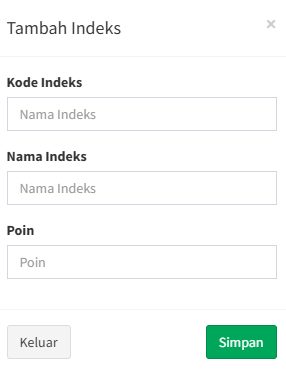
<span style="color: rgb(0, 0, 0);">3. Isilah semua data yang tertera pada **"tabel Tambah Pegawai"** sesuai ketentuan di bawah.</span>

[![image.png](https://images.bimbelnurulfikri.id/uploads/images/gallery/2025-02/scaled-1680-/6n3image.png)](https://images.bimbelnurulfikri.id/uploads/images/gallery/2025-02/6n3image.png)

<table border="1" id="bkmrk-no-kolom-penjelasan-" style="border-collapse: collapse; width: 100.476%; height: 123.953px; border-width: 1px; border-style: inset;"><colgroup><col style="width: 10.7046%;"></col><col style="width: 25.6098%;"></col><col style="width: 63.6856%;"></col></colgroup><thead><tr style="height: 29.7969px;"><td class="align-center" style="height: 29.7969px;"><span style="color: rgb(0, 0, 0);">**No**</span></td><td class="align-center" style="height: 29.7969px;"><span style="color: rgb(0, 0, 0);">**Kolom**</span></td><td class="align-center" style="height: 29.7969px;"><span style="color: rgb(0, 0, 0);">**Penjelasan**</span></td></tr></thead><tbody><tr style="height: 29.7969px;"><td style="height: 29.7969px;"><span style="color: rgb(0, 0, 0);">1</span></td><td style="height: 29.7969px;"><span style="color: rgb(0, 0, 0);">Kode Indeks</span></td><td style="height: 29.7969px;"> </td></tr><tr style="height: 31.9844px;"><td style="height: 31.9844px;"><span style="color: rgb(0, 0, 0);">2</span></td><td style="height: 31.9844px;"><span style="color: rgb(0, 0, 0);">Nama Indeks</span></td><td style="height: 31.9844px;"> </td></tr><tr style="height: 32.375px;"><td style="height: 32.375px;"><span style="color: rgb(0, 0, 0);">3</span></td><td style="height: 32.375px;"><span style="color: rgb(0, 0, 0);">Poin</span></td><td style="height: 32.375px;"> </td></tr></tbody></table>

<span style="color: rgb(0, 0, 0);">4. Klik **"Keluar"** untuk membatalkan pengisian data atau klik **"Simpan"** untuk menyimpan data tahun akademik.</span>

<span style="color: rgb(0, 0, 0);">5. Maka, data tahun akademik yang sudah dimasukkan tadi tersimpan di **"tabel Data Indeks"**.</span>

# Mengedit Indeks

<span style="color: rgb(0, 0, 0);">1. Masih pada halaman **"menu Indeks"**, klik ikon berikut ini.</span>

<span style="color: rgb(0, 0, 0);">![](https://images.bimbelnurulfikri.id/uploads/images/gallery/2025-02/embedded-image-xx4xfna4.png)</span>

<span style="color: rgb(0, 0, 0);">2. Sesuaikan semua data pada form dengan benar sesuai kriteria yang ditentukan,</span><span style="color: rgb(0, 0, 0);"> lalu klik **"Simpan"**.</span>

[![image.png](https://images.bimbelnurulfikri.id/uploads/images/gallery/2025-02/scaled-1680-/6n3image.png)](https://images.bimbelnurulfikri.id/uploads/images/gallery/2025-02/6n3image.png)

<table border="1" id="bkmrk-no-kolom-penjelasan-" style="border-collapse: collapse; width: 100.476%; height: 123.953px; border-width: 1px; border-style: inset;"><colgroup><col style="width: 10.7046%;"></col><col style="width: 25.6098%;"></col><col style="width: 63.6856%;"></col></colgroup><thead><tr style="height: 29.7969px;"><td class="align-center" style="height: 29.7969px;"><span style="color: rgb(0, 0, 0);">**No**</span></td><td class="align-center" style="height: 29.7969px;"><span style="color: rgb(0, 0, 0);">**Kolom**</span></td><td class="align-center" style="height: 29.7969px;"><span style="color: rgb(0, 0, 0);">**Penjelasan**</span></td></tr></thead><tbody><tr style="height: 29.7969px;"><td style="height: 29.7969px;"><span style="color: rgb(0, 0, 0);">1</span></td><td style="height: 29.7969px;"><span style="color: rgb(0, 0, 0);">Kode Indeks</span></td><td style="height: 29.7969px;"> </td></tr><tr style="height: 31.9844px;"><td style="height: 31.9844px;"><span style="color: rgb(0, 0, 0);">2</span></td><td style="height: 31.9844px;"><span style="color: rgb(0, 0, 0);">Nama Indeks</span></td><td style="height: 31.9844px;"> </td></tr><tr style="height: 32.375px;"><td style="height: 32.375px;"><span style="color: rgb(0, 0, 0);">3</span></td><td style="height: 32.375px;"><span style="color: rgb(0, 0, 0);">Poin</span></td><td style="height: 32.375px;">  
</td></tr></tbody></table>

<span style="color: rgb(0, 0, 0);">3. Klik **"Keluar"** untuk membatalkan pengisian data atau klik **"Simpan"** untuk menyimpan data sekolah.  
5\. Maka, data tahun akademik yang sudah dimasukkan tadi tersimpan di **"tabel Data Indeks"**.</span>

# Menghapus Indeks

<span style="color: rgb(0, 0, 0);">1. Masih pada halaman **"menu Indeks"**, klik ikon berikut ini.</span>

![](https://images.bimbelnurulfikri.id/uploads/images/gallery/2025-02/embedded-image-shb1hiek.png)

<span style="color: rgb(0, 0, 0);">2. Klik **"Hapus"**.</span>

[![image.png](https://images.bimbelnurulfikri.id/uploads/images/gallery/2025-02/scaled-1680-/rMUimage.png)](https://images.bimbelnurulfikri.id/uploads/images/gallery/2025-02/rMUimage.png)

<p class="callout success"><span style="color: rgb(0, 0, 0);">Data Indeks sudah berhasil dihapus!</span></p>

# User

!! FITUR DALAM PENGEMBANGAN !!

# Tracking

!! FITUR DALAM TAHAP PENGEMBANGAN !!